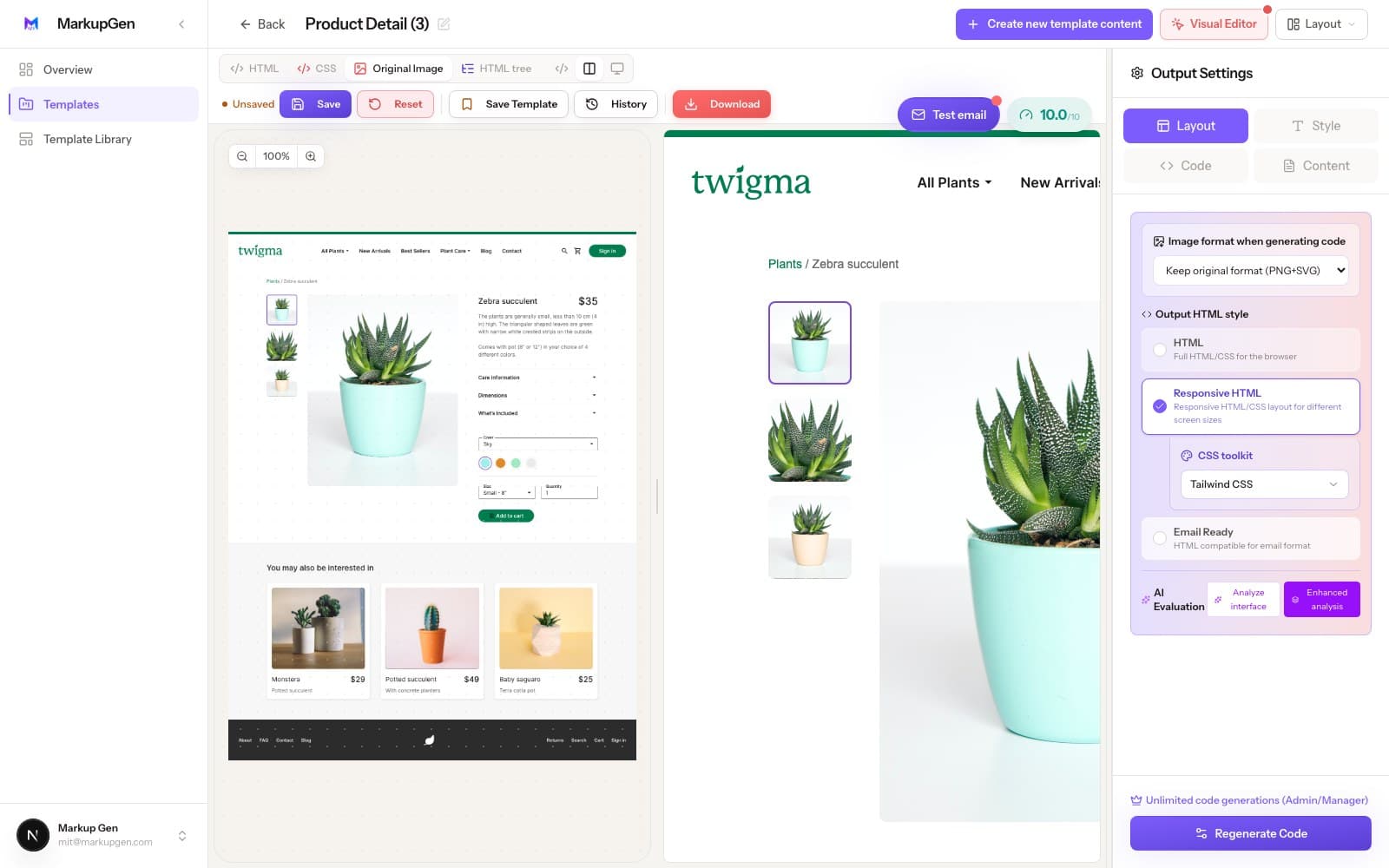
Convert Figma to
Bulma with AI
Turn any Figma design into clean Bulma HTML in seconds — modern, no-JS class names, responsive breakpoints included, nothing left to hand-code. Free Figma plugin — no design handoff required.

Turn any Figma design into clean Bulma HTML in seconds — modern, no-JS class names, responsive breakpoints included, nothing left to hand-code. Free Figma plugin — no design handoff required.

No vanity metrics — just what the converter does for every export.
How it works
No manual re-measuring, no guessing breakpoints — export, generate, refine.
Grab the MarkupGen Figma plugin and export any frame — structure, styles and images land in your workspace in one step.
MarkupGen runs the design through Gemini, Claude, Cursor and DeepSeek to generate HTML using Bulma's Flexbox-based class names from the design's actual structure.
Fine-tune content, fonts and layout in the in-app editor, then export clean, ready-to-ship code.
Why hand-coding this is slower than it looks
MarkupGen exists to remove exactly these steps.
Every gap and padding value already exists in the Figma file — eyeballing it into code just invites small inconsistencies across sections.
A design that only exists at one fixed width leaves you guessing where content should wrap on smaller screens.
Manual exports and most plugins produce deeply nested, unlabeled markup that's hard to read and bad for SEO.
MarkupGen reads your design, generates clean HTML/CSS, and lets you fine-tune every detail visually.
Design → Code → Edit → Done.
Why the output holds up
Every conversion is judged on the same bar a developer would use for code they'd actually ship.
Bulma is already Flexbox under the hood, so Auto Layout maps onto it more directly than into most other frameworks.
No unnecessary nested divs — proper heading hierarchy and meaningful tags by default.
Direction, gap, padding and alignment map to a single, coherent Flexbox structure automatically.
Breakpoints and fluid layouts are generated from the design's own Figma resizing constraints.
Every export is scored so you know how close it is to shippable before you commit to it.
Refine content, fonts and layout visually in the editor before you export the final code.
Every CSS flavor, one export
Convert once, then pick the output format — no separate tool needed per stack.
Modern, no-JS CSS framework
Built with today's leading AI tools
Start free and upgrade when you need more. No hidden fees, cancel anytime.
Explore & Try
Explore MarkupGen for free — convert Figma designs, try the Visual Editor, and experience core AI features before upgrading.
Solo & Small Projects
For solo builders & personal projects — build more with a bigger daily quota, faster AI, unlimited Visual Editor, and extra CSS frameworks.
Freelancers & Pros
For freelancers & professionals — a much bigger daily quota, a higher AI request rate, and a professional export workflow with the Full Component Export Studio.
Teams & Enterprises
For teams & agencies — the highest daily quota, our most powerful AI models, and the highest AI request rate for high-volume team workflows.
Common questions about converting Figma with MarkupGen.
Bulma is a pure-CSS, no-JavaScript framework built on Flexbox — a good fit if you want Bootstrap-style readable class names without shipping any JS for components.
Yes. The same Figma frame can be exported as Bulma, Vanilla CSS, Tailwind CSS, Bootstrap, Materialize or Pico CSS.
Yes. Breakpoints map onto Bulma's own responsive column and container classes, generated from your design's resizing constraints.
Yes. Responsive behavior is generated automatically from the design's own Figma resizing constraints, instead of you having to guess breakpoints by hand.
None of them offer Bulma as a dedicated output format — MarkupGen supports it as one of six first-class CSS choices. See the full comparisons below for specifics.
Yes. Install MarkupGen from the Figma plugin directory and export your first Bulma HTML for free — no credit card required to start.
Yes. MarkupGen has a free plan that includes several conversions per month, so you can try it on a real Figma frame before deciding on a paid tier.
Yes. Content, fonts and layout are all editable in the in-app editor before you export, and the exported package itself is plain, editable code — not a locked black box.
Dev Mode inspects a design layer by layer and gives you values and snippets to hand-assemble. MarkupGen takes a whole frame and outputs a complete, ready-to-use file in one pass.
Also convert Figma to:
Want the step-by-step walkthrough first? Read the step-by-step guide, or see how MarkupGen compares to Figma Dev Mode, Anima, Locofy and Builder.io. See how it fits agencies, developers, marketing teams and startups.
Turn your next Figma frame into clean Bulma HTML — free to start.