MarkupGenMarkupGen
ProcessDemoFeaturesFormatsPricingFAQ
Log inConvert for Free
  1. MarkupGen
  2. /Figma to HTML
Figma → HTML / CSS / Tailwind

Convert Figma to HTML
& CSS with AI

Turn any Figma design into clean, responsive HTML, CSS or Tailwind code in seconds — built for designers and developers who'd rather ship real code than hand-craft it. Semantic markup, Auto Layout mapped to Flexbox, free Figma plugin included.

Convert Figma to HTML → See how it works
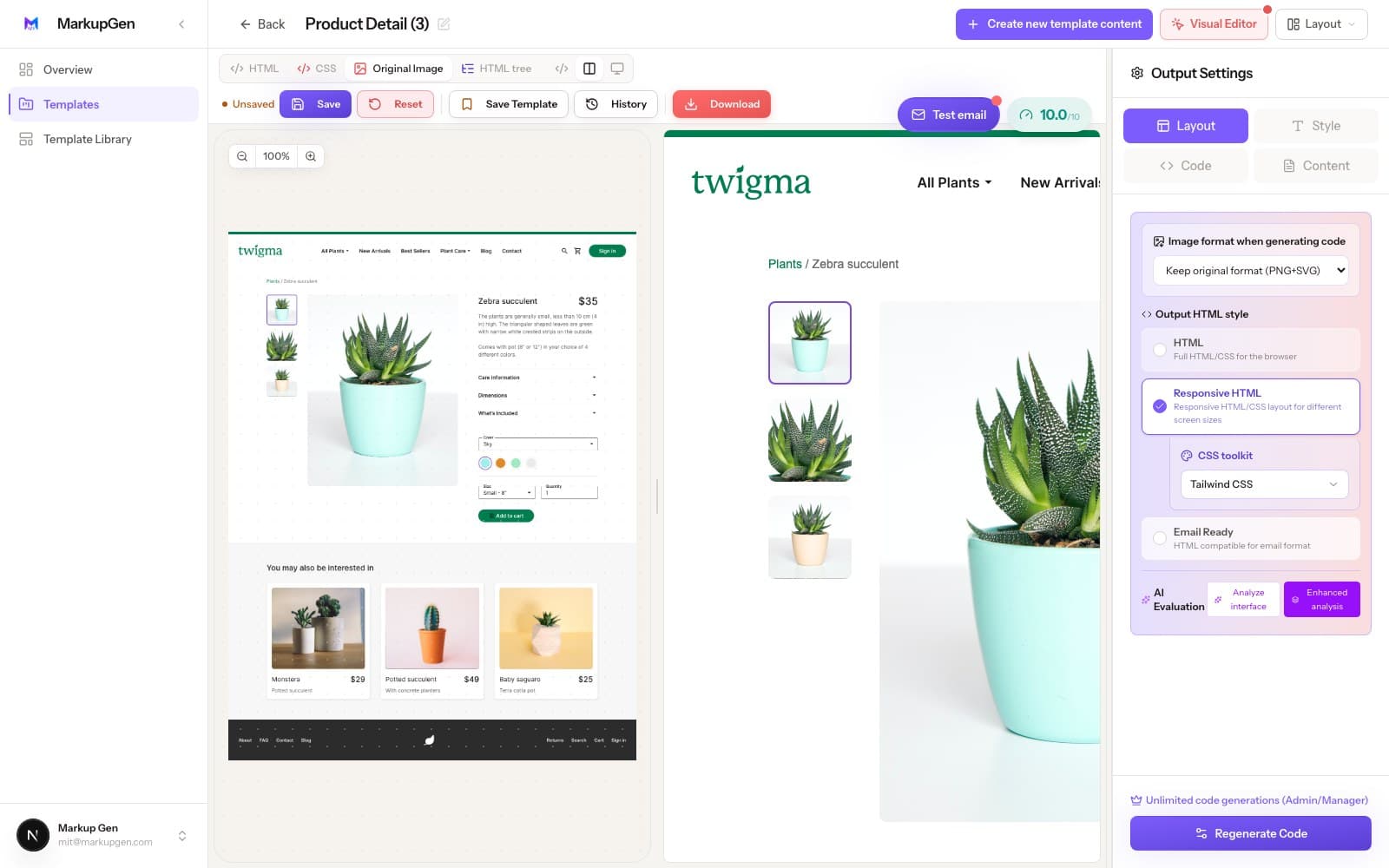
MarkupGen — Editor4 changes saved
MarkupGen converting a Figma design to HTML and CSS
Figma → Code in seconds

Figma to HTML, explained

What Is a Figma to HTML Converter?

A Figma to HTML converter reads the actual structure of a Figma file — frames, layers, Auto Layout, constraints and text styles — and turns it into real HTML and CSS, instead of a screenshot or a list of values to copy by hand. Auto Layout already describes direction, gap and padding the same way Flexbox does, so that structure carries over to CSS with very little guesswork. Figma's resizing constraints do the same job for responsive behavior: they tell the converter how a section should behave at a smaller width, not just how it looks at the size you designed it.

That's different from inspecting a design. Figma's own Dev Mode shows you values for one layer at a time — you still write the HTML and assemble the CSS yourself. A converter like MarkupGen generates that HTML and CSS directly from a whole frame, including the tag structure, so what comes out is a page you can open in a browser, not a list of measurements. Whether that output is actually usable comes down to whether it's semantic HTML — real headings and a <button> instead of a <div> with a click handler — rather than nested <div>s that just happen to look right.

What MarkupGen actually gives you

No vanity metrics — just what the converter does for every export.

Free Figma pluginNo design handoff — install and export straight from Figma
Semantic HTML by defaultReal headings and landmarks, not nested div soup
Editable, not a black boxEvery export opens in an editor before you ship it
Multiple output formatsHTML, CSS, Tailwind, Bootstrap, React and more
3 steps

How it works

From Figma frame to HTML/CSS in 3 steps

No manual re-measuring, no guessing breakpoints — export, generate, refine.

Export the frame

Grab the MarkupGen Figma plugin and export any frame — structure, styles and images land in your workspace in one step.

AI builds HTML & CSS

MarkupGen runs the design through Gemini, Claude, Cursor and DeepSeek to generate real HTML, CSS and Tailwind from the design's actual structure.

Powered by

Refine, then export

Fine-tune content, fonts and layout in the in-app editor, then export clean, ready-to-ship code.

Why hand-coding this is slower than it looks

What manual Figma-to-HTML conversion actually costs you

MarkupGen exists to remove exactly these steps.

Re-measuring spacing by hand

Every gap and padding value already exists in the Figma file — eyeballing it into code just invites small inconsistencies across sections.

Guessing breakpoints

A design that only exists at one fixed width leaves you guessing where content should wrap on smaller screens.

Divs stacked on divs

Manual exports and most plugins produce deeply nested, unlabeled markup that's hard to read and bad for SEO.

From Figma properties to real CSS

How a Figma design maps to HTML and CSS

Every property below comes from the design file itself — nothing is approximated by eye.

Auto LayoutFlexbox (display: flex)
GapCSS gap
PaddingCSS padding
Alignmentjustify-content / align-items
Hug contentsfit-content / intrinsic sizing
Fill containerflex: 1 / width: 100%
Frame / group<div> or <section>
Resizing constraintsResponsive CSS breakpoints
Text stylesCSS typography (font, size, line-height)
Components & instancesReusable HTML structures

From Figma to production code — in seconds

MarkupGen reads your design, generates clean HTML/CSS, and lets you fine-tune every detail visually.

product-detail.html
markupgen.comLive

Design → Code → Edit → Done.

See it in practice

A real pricing card, from Figma to code

This is the actual kind of output you get — not a simplified demo.

In the Figma frame

  • Auto Layout, vertical, 24px gap
  • Heading, price and a button inside a bordered card
  • Button set to "Fill container" resizing

What MarkupGen exports

pricing-card.html
<article class="pricing-card">
  <h3 class="pricing-card__title">Pro</h3>
  <p class="pricing-card__price">
    $29<span>/mo</span>
  </p>
  <button class="pricing-card__cta" type="button">
    Get started
  </button>
</article>

/* pricing-card.css */
.pricing-card {
  display: flex;
  flex-direction: column;
  gap: 24px;
  border: 1px solid #E5E5E5;
  border-radius: 16px;
  padding: 32px;
}
.pricing-card__cta {
  width: 100%;
}

Why the output holds up

Built to be clean code, not just matching pixels

Every conversion is judged on the same bar a developer would use for code they'd actually ship.

6 CSS output formats

Vanilla CSS, Tailwind CSS, Bootstrap, Bulma, Materialize or Pico — pick what fits your stack.

Semantic, SEO-ready markup

No unnecessary nested divs — proper heading hierarchy and meaningful tags by default.

Auto Layout → Flexbox

Direction, gap, padding and alignment map to a single, coherent Flexbox structure automatically.

Responsive by default

Breakpoints and fluid layouts are generated from the design's own Figma resizing constraints.

Automatic quality score

Every export is scored so you know how close it is to shippable before you commit to it.

Editable, not a black box

Refine content, fonts and layout visually in the editor before you export the final code.

Every CSS flavor, one export

Choose the exact format your project needs

Convert once, then pick the output format — no separate tool needed per stack.

Vanilla CSS

Zero dependencies, pure HTML/CSS

Tailwind CSS

Utility-first, design-token driven

Bootstrap

Familiar grid & components

Bulma

Modern, no-JS CSS framework

Materialize

Material Design out of the box

Pico CSS

Minimal, semantic-first styling

Built with today's leading AI tools

Gemini
Claude
Cursor
DeepSeek

The honest trade-off

Manual handoff vs. MarkupGen

Same end result, a very different amount of manual work to get there.

ManualMarkupGen
Inspect the Figma fileYesAutomated
Write the HTMLYesAutomated
Write the CSSYesAutomated
Responsive layoutManualGenerated
Repeated componentsRebuilt each timeGenerated once, reused
Export final codeYesYes
Pricing

Simple, transparent pricing

Start free and upgrade when you need more. No hidden fees, cancel anytime.

Free

Free

Explore & Try

Explore MarkupGen for free — convert Figma designs, try the Visual Editor, and experience core AI features before upgrading.

$0/ month
  • 5 generations / month
  • Visual Editor — Try it for free
  • Basic AI Models
  • Standard AI Processing Speed
  • Tailwind CSS, Bootstrap & Vanilla CSS
  • HTML/CSS Export
Convert for Free
Starter

Starter

Solo & Small Projects

For solo builders & personal projects — build more with a bigger daily quota, faster AI, unlimited Visual Editor, and extra CSS frameworks.

$10/ month
  • 50 generations / day
  • Visual Editor — Unlimited
  • Faster AI Processing
  • Extra CSS Frameworks
  • AI Design Evaluation & Content Editor
  • React, Vue, Svelte & Angular Export
  • Includes all Free features
Upgrade to Starter
Most popular

Pro

Freelancers & Pros

For freelancers & professionals — a much bigger daily quota, a higher AI request rate, and a professional export workflow with the Full Component Export Studio.

$20/ month
  • 150 generations / day
  • Visual Editor — Unlimited
  • Higher AI Request Rate
  • Full Component Export Studio
  • All Frameworks ZIP Bundle
  • Up to 300 new projects / day
  • Includes all Starter features
Upgrade to Pro
Business

Business

Teams & Enterprises

For teams & agencies — the highest daily quota, our most powerful AI models, and the highest AI request rate for high-volume team workflows.

$100/ month
  • 1,000 generations / day
  • Visual Editor — Unlimited
  • Most Powerful AI Models
  • Highest AI Request Rate
  • Up to 2,000 new projects / day
  • Team Workspace
  • 1-on-1 Priority Support
  • Includes all Pro features
Upgrade for Teams

Frequently asked questions

Common questions about converting Figma with MarkupGen.

Yes. Export Vanilla CSS, Tailwind CSS, Bootstrap, Bulma, Materialize or Pico CSS from the same Figma frame — pick whichever format matches your project.

Yes. The same frame can be exported as HTML/CSS or as React components, so you can use MarkupGen for a static page or a component-based app.

Yes. Output avoids unnecessary nested divs and uses a proper heading hierarchy by default, so the markup is readable and SEO-friendly, not just visually correct.

Yes. Responsive behavior is generated automatically from the design's own Figma resizing constraints, instead of you having to guess breakpoints by hand.

They can all export HTML/CSS too, but MarkupGen focuses on getting it clean and complete from a whole frame, not just a layer. See the full comparisons below for specifics.

Direction, gap, padding and alignment in Auto Layout map directly to Flexbox properties — see the full breakdown below.

Yes. The export is a complete frontend — HTML, CSS and assets — not just a code snippet, so you can host it as-is or drop it straight into an existing project.

Yes. Install MarkupGen from the Figma plugin directory and export your first HTML for free — no credit card required to start.

Semantic HTML and a proper heading hierarchy are the default, which covers real accessibility basics — but automated output isn't a full accessibility audit. Review color contrast, ARIA where genuinely needed, and keyboard navigation before shipping. See our Figma to accessible HTML guide for a full checklist.

Yes. MarkupGen has a free plan that includes several conversions per month, so you can try it on a real Figma frame before deciding on a paid tier.

Yes. Content, fonts and layout are all editable in the in-app editor before you export, and the exported package itself is plain, editable code — not a locked black box.

Dev Mode inspects a design layer by layer and gives you values and snippets to hand-assemble. MarkupGen takes a whole frame and outputs a complete, ready-to-use file in one pass.

Also convert Figma to:

Figma to ReactFigma to VueFigma to TailwindFigma to BootstrapFigma to BulmaFigma to MaterializeFigma to Pico CSSFigma to CSSFigma to Semantic HTML

Want the step-by-step walkthrough first? Read the step-by-step guide, or see how MarkupGen compares to Figma Dev Mode, Anima, Locofy and Builder.io. See how it fits agencies, developers, marketing teams and startups.

Ready to convert your Figma design?

Turn your next Figma frame into clean HTML, CSS or Tailwind code — free to start.

Convert Figma to HTML →
MarkupGenMarkupGen© 2025 MarkupGen. All rights reserved.
ProcessDemoFeaturesFormatsPricingFAQBlogUse CasesCompareCase StudiesResources
AboutPrivacyTermsContact