
Published 2026-08-06 · By MarkupGen Team
Figma to Tailwind CSS: A Practical Conversion Guide
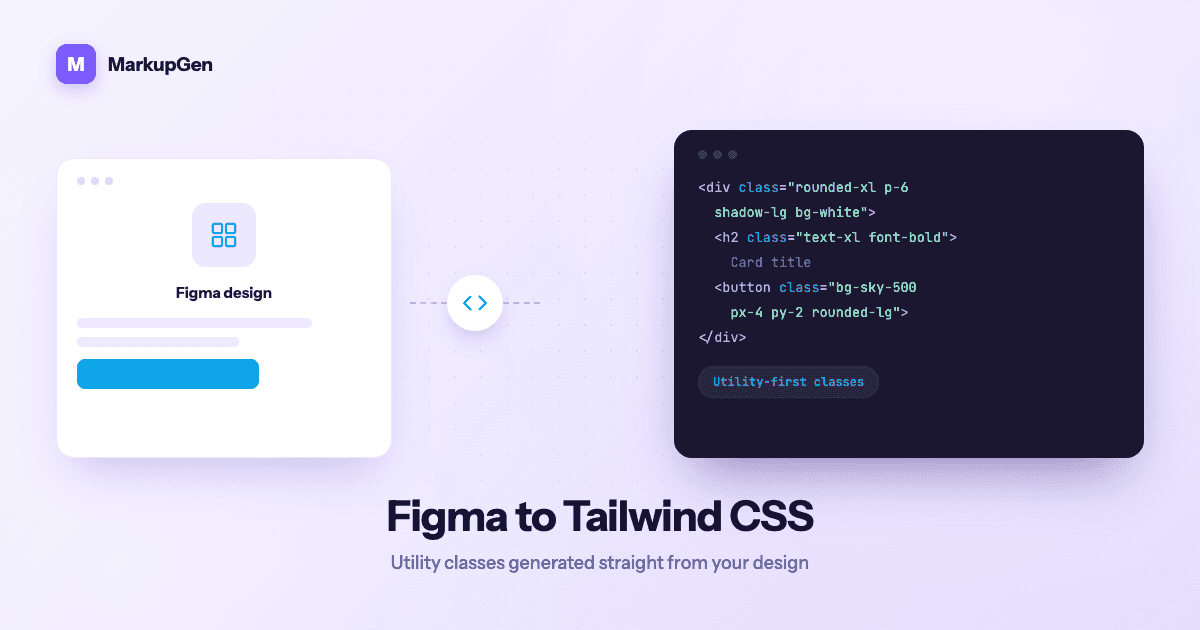
Tailwind CSS is one of the most common targets developers ask for when handing off a Figma design, and also one of the most tedious to produce by hand. Every spacing value, color and font size in the design has to be mentally translated into "the right" Tailwind utility class — and that translation step is where a lot of hand-off time quietly disappears.
Why manual Figma-to-Tailwind conversion is so slow
Tailwind's whole value proposition is a constrained, consistent scale — spacing, color and type all snap to a predefined set of tokens instead of arbitrary values. That's great once the code exists. Getting there from a Figma file, though, means a person has to do the constraining by hand:
- Guessing the spacing step. A designer sets padding to 18px. Is that
p-4(16px) orp-5(20px), or does it need an arbitrary value likep-[18px]? Multiply that decision by every gap, margin and padding in the file. - Matching colors to a theme. Figma's color picker doesn't care about your
tailwind.configpalette. A hex value has to be checked against your theme's grays, blues and brand colors, or you end up with one-offbg-[#f4f4f5]classes scattered through the codebase instead ofbg-gray-100. - Reconstructing typography scales. Font sizes, line heights and weights need to map onto
text-*andfont-*utilities consistently, or headings that look identical in Figma end up using three different class combinations in code. - Doing it all again for every breakpoint. None of the above is a one-time cost — it repeats for each responsive variant, by hand, with
sm:,md:andlg:prefixes layered on top.
None of these steps are individually hard. But they're exactly the kind of repetitive, judgment-light work where inconsistency creeps in — and inconsistent utility classes defeat the point of using Tailwind in the first place.
How MarkupGen generates Tailwind output from a real design
MarkupGen is built to remove that translation step rather than speed up doing it by hand. The workflow is the same whether you're exporting to plain CSS or Tailwind:
- Export the frame from Figma using the MarkupGen plugin. It captures the frame's structure, styles and images and sends them into your workspace.
- AI builds the markup from the actual structure and style of the design — not a rough approximation of it.
- Refine content, fonts and layout visually in the in-app editor before anything is finalized.
- Export the final code package in your chosen format.
The part that matters most for this article is step 4: when Tailwind CSS is selected as the output format, the utility classes are generated from the design's actual spacing, color and typography tokens — not guessed from a screenshot. A padding value in the Figma frame maps to the closest matching Tailwind spacing utility, a fill color is resolved against the design's real color values, and font sizes and weights carry through to the matching text-* and font-* classes. It's the same translation a developer would do by hand, done directly from the design data instead of by eye.
Vanilla HTML/CSS and React are the other two output formats available — Tailwind is simply one of the three, selectable per export depending on what the target codebase expects.
Auto Layout becomes Flexbox utility classes
Most real Figma files use Auto Layout for anything resembling a component, so how it translates matters as much as color and spacing do. MarkupGen maps Auto Layout's direction, gap, padding and alignment settings onto their equivalent CSS Flexbox structure, and for Tailwind output that comes through as the matching flex utility classes — direction becomes the appropriate flex-row / flex-col utility, gap becomes a gap-* utility, padding becomes p-* / px-* / py-*, and alignment settings become items-* / justify-* utilities. Responsive breakpoints and fluid behavior are generated automatically too, based on the resizing constraints already set on the frame, rather than being added as a separate manual pass. For a deeper look at exactly how each Auto Layout property maps to its Flexbox equivalent, see Auto Layout to CSS.
Reviewing the generated classes before you ship
Automated conversion gets the utility classes right for the vast majority of a design, but it's still worth a pass before merging:
- Scan for one-off values. If a design used a spacing value slightly off the Tailwind scale, check whether it's worth nudging the design to a standard step or keeping the exact value.
- Check color consistency across the page, especially where a component appears more than once — the same visual color should resolve to the same utility class everywhere.
- Confirm the heading hierarchy and semantic tags look right, since output is generated as clean, semantic HTML without unnecessary nested
<div>s by default. - Use the in-app editor to adjust content, fonts or layout visually rather than hand-editing exported classes, then re-export once you're happy.
Every export also gets an automatic AI quality score, so you have a quick signal on whether a given export is ready to ship or worth a second look before it goes further.
Try it on your own design
If you're currently translating Figma values into Tailwind classes by hand, it's worth seeing how much of that work disappears when the classes come from the design's real tokens instead of a guess. Try MarkupGen free on one of your own Figma frames, or read the general Figma-to-HTML guide for the full four-step workflow. Questions along the way go to support@markupgen.com.
Prefer a quick overview before diving in? See the Figma to Tailwind CSS converter page for what you get out of the box.