
Published 2026-10-12 · By MarkupGen Team
Email Ready: HTML Email from a Figma Design or Image
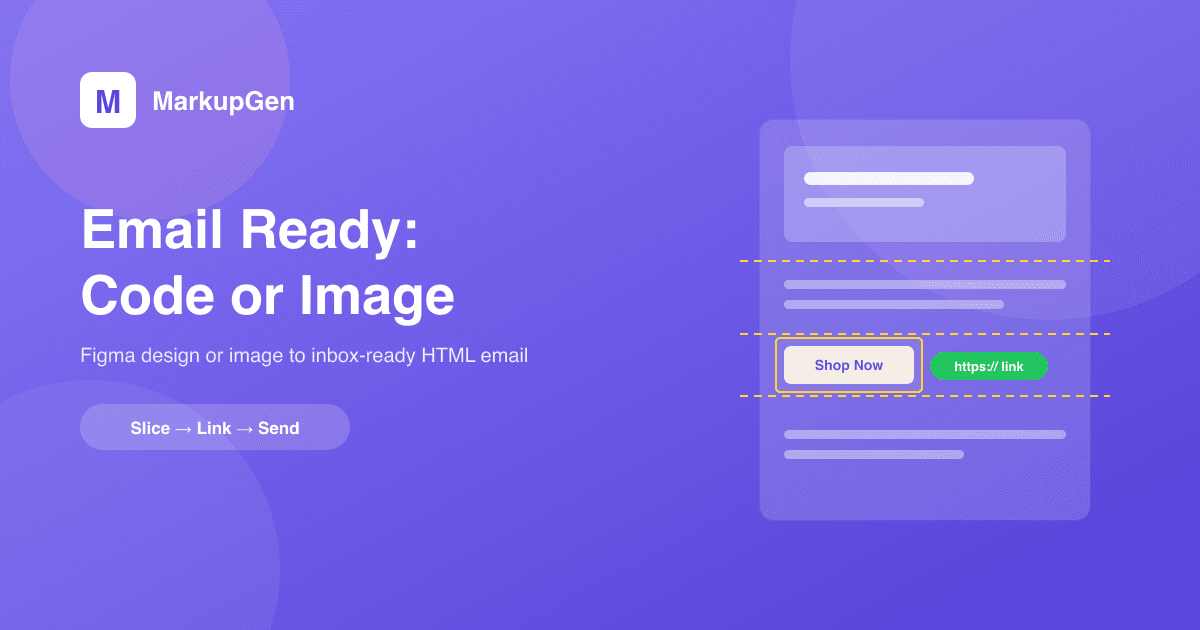
Turning a design into an HTML email is harder than turning it into a web page, because an inbox is not a browser. Email Ready is the MarkupGen output mode built for that job, and it gives you two ways to get there: generate email-ready HTML code from your Figma design, or create the email from an image by slicing the design and adding clickable links. This post explains both, when to use each, and everything the tool handles for you.
What Email Ready is
Every MarkupGen project has an output format. Responsive HTML is for websites and landing pages. Email Ready is for newsletters and marketing emails: instead of flexbox and grid, it produces table-based HTML with inline CSS — the format Gmail, Outlook and Apple Mail are built to render.
You pick it in the layout settings of a project, generate, and the result is a complete email document rather than a web page.
Way 1: generate email-ready HTML code
This is the default path, and the right one whenever the email is mostly text, buttons and simple images.
- Table-based layout with inline CSS. No flexbox, no grid, no external stylesheet for an email client to strip.
- Real, live text. Headlines and paragraphs stay as text, so they can be selected, read by screen readers, and shown even when images are blocked.
- Effects email clients can't render are converted to images. Parts of the design that have no email-safe equivalent are rasterized instead of being dropped or broken.
- A valid XHTML 1.0 Transitional document. The doctype, namespace and attributes are normalized on export, because that is the declaration Outlook, Gmail and Apple Mail handle most consistently.
- Editable in place. Change copy and swap images in the editor before you export.
- A live size meter. The Email export card shows the current HTML size against the limit, so you see a problem before your subscribers do.
The 102KB problem: why Gmail clips emails
Gmail clips any message whose HTML is larger than roughly 102KB. The recipient sees the top of the email and a "View entire message" link — and whatever sat below the cut, often the call to action and the unsubscribe link, is hidden.
A rich design with many sections can pass that limit as code. MarkupGen warns you at 100KB — in the layout panel and again in the test-send dialog — and offers the second way.
Way 2: create the email from an image
Create email from image takes the opposite approach. Instead of describing the design in code, it uses the design image itself, cuts it into slices, and reassembles those slices in a lightweight table. The HTML only holds the table and image references, so it is typically a few KB no matter how complex the design looks.
How it works:
- Start from an image. The project's design image is loaded automatically, or upload any other image — a Figma artboard, a banner, a poster.
- Draw the clickable regions. Drag on the image to draw a box over each button, banner or product. Move it, resize it from any edge or corner, nudge it by 1px with the arrow keys, or type exact coordinates.
- Add a link and alt text. Each region takes a link (
http(s)://,mailto:ortel:), a name, and alt text. - Set the email width. 600px by default; change it if your template needs another width.
- Generate. MarkupGen slices the image and builds the table.
- Preview, test and export. Check the desktop and mobile (375px) previews, send a test email, then apply the code to the project or take it elsewhere.
What the tool takes care of during that process:
- Cuts only where needed. The image is cut along the top and bottom of each region. Neighbouring slices with no link are merged, so you get fewer images and fewer requests.
- Visible cut lines. Yellow guides show exactly where the cuts will fall, so you can keep them on empty background instead of through a line of text.
- Pixel-exact reassembly. Cut positions are snapped to whole pixels at the display size, so the slices add up to the original image with no gaps and no shifted columns.
- Lossless, hosted slices. Slices are saved as PNG and uploaded for you with absolute URLs — you don't host anything. A 2x image stays sharp because it is displayed at the email width, not downscaled.
- Outlook-specific markup. Fixed widths, conditional comments for Outlook's Word-based engine, and resets that keep stray spacing from appearing between slices.
- Safe links only. Anything that isn't
http(s),mailtoortelis rejected, and a region without a valid link is skipped with a warning rather than shipping a broken link. - Regions are saved with the project. Reopen the tool later to fix a link or move a region without redrawing everything.
- Generous limits. Up to 200 link regions and 400 slices per email, from images up to 4000px wide.
Which one should you use?
| Generate HTML code | Create email from image | |
|---|---|---|
| Best for | Text-heavy newsletters, transactional-style emails | Visual campaigns, promo banners, complex layouts |
| Text | Live, selectable text | Part of the image |
| HTML size | Grows with the design | Typically a few KB |
| Matches the design | Close, within email client limits | Exactly — it is the design |
| Visible when images are blocked | Yes | Only the alt text |
A practical rule: start with generated code. Switch to the image method when the size meter goes over the limit, or when the design relies on fonts and effects email clients can't reproduce.
Everything you can do with the result
Both paths end in the same place:
- Send a test email to a real inbox, straight from the editor. Sending is blocked if any text or image in the design is still unassigned.
- Preview on desktop and mobile before sending.
- Copy the code, download the .html file, or share a link to a hosted copy of the email.
- Apply to project and save, so the email lives with the rest of your project.
- Work in your language — the interface is available in 10 languages.
For a closer look at testing, see how to generate and test-send email marketing HTML.
The trade-offs, stated plainly
An image-based email is not free. Text inside it can't be selected, copied or searched. If a client blocks images by default, the recipient sees only alt text until they allow images — which is why the tool asks for alt text on every region. The layout is fixed width, so it scales on small screens rather than reflowing; check the mobile preview. And a browser preview is never proof: always open the test email in the clients your audience uses.
FAQ
Why does Gmail clip my email? Gmail clips messages whose HTML is larger than about 102KB and hides the rest behind a "View entire message" link. MarkupGen shows the current size and warns you at 100KB.
Can I turn an image into an HTML email with clickable links? Yes. Create email from image slices the image, wraps each region you draw in its own link, and rebuilds the image as a table that email clients render reliably.
Do I have to host the images myself? No. The slices are uploaded automatically and referenced with absolute URLs, so the email works as soon as you send it.
Will an image-based email work in Outlook? The output uses table layout, fixed widths and Outlook-specific conditional markup. You should still send a test to an Outlook inbox before a campaign.
Can I edit the links after generating? Yes. The regions are saved with the project, so you can reopen the tool, change a link or move a region, and generate again.
Does it only work with Figma designs? The generated-code path starts from a Figma design. The image path also accepts any image you upload inside an Email Ready project.
If an email campaign is sitting in Figma — or in a single image — you can start for free and have inbox-ready HTML in minutes. Marketing teams can see the wider workflow in MarkupGen for marketing teams.