
Published 2026-08-19 · By MarkupGen Team
Do You Need a Figma Plugin to Convert Designs to HTML?
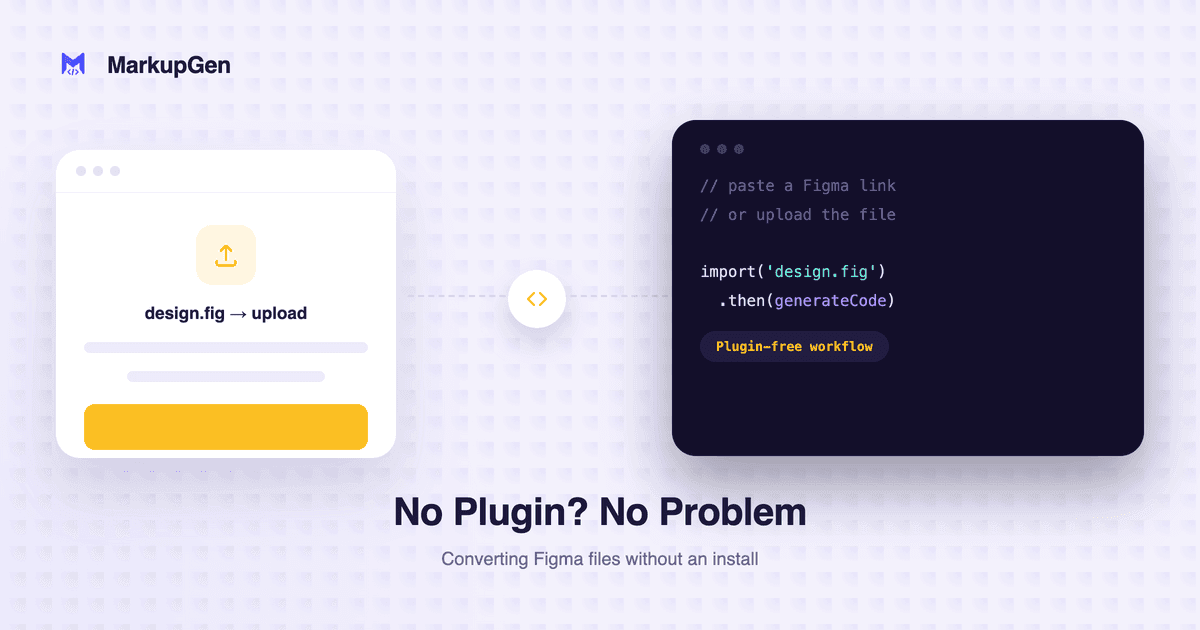
Searching "figma to HTML without plugin" usually means one of two things: you'd rather not install anything, or you're wary of giving a third-party tool access to your Figma account. Both are reasonable instincts. Here's what the plugin-free alternatives actually do instead, and where they fall short.
What "without a plugin" usually means
Tools that skip the plugin step get your design data one of two ways:
- A shared Figma link + the Figma REST API. You paste a public (or shared) file link, the tool requests an OAuth token, and it pulls the file's data through Figma's API. This works, but it means granting a token that can read across your account or team — a bigger access footprint than handing over one frame.
- A screenshot or exported image. You upload a PNG or paste an image, and an AI vision model guesses the layout from pixels. There's no Auto Layout data, no real spacing values, no component structure — just an estimate of what the image probably looked like as code.
Neither is wrong for every use case. But both give up information a plugin has for free.
What a plugin actually gives up in exchange
A Figma plugin runs inside Figma's own sandboxed plugin API. It only sees the file you have open, and it only sends data when you explicitly select a frame and export it — not your whole account, not your other projects. That's a narrower access grant than a persistent OAuth token, not a wider one.
In exchange, it gets the real thing: Auto Layout direction, gap and padding as actual values, resize constraints, component structure, text styles, and image assets — all read directly from the design, not reconstructed from a screenshot. That's the difference between Auto Layout mapping cleanly to Flexbox and an AI model guessing at spacing from a picture.
The actual cost of installing one
Installing a Figma plugin takes about the same effort as clicking a link: open the file, add the plugin from the Community tab (or your team's private plugins), and it shows up in the right-click menu from then on. You never leave Figma to do it, and there's no separate account-wide permission screen to click through the way there is with an OAuth-based web tool.
Where MarkupGen lands
MarkupGen uses the plugin approach on purpose. You select a frame in Figma, send it to your workspace with the plugin, and AI generates HTML, CSS or Tailwind from the design's actual structure — not a screenshot of it. If avoiding a one-time, scoped plugin install is a hard requirement for your workflow, a link-based or screenshot-based tool is the option that fits. If you'd rather trade that install for markup that's actually derived from your design instead of guessed at, that's what the plugin is for.
Convert for free — no credit card required.