
Published 2026-08-18 · By MarkupGen Team
Figma to Pico CSS: A Practical Conversion Guide
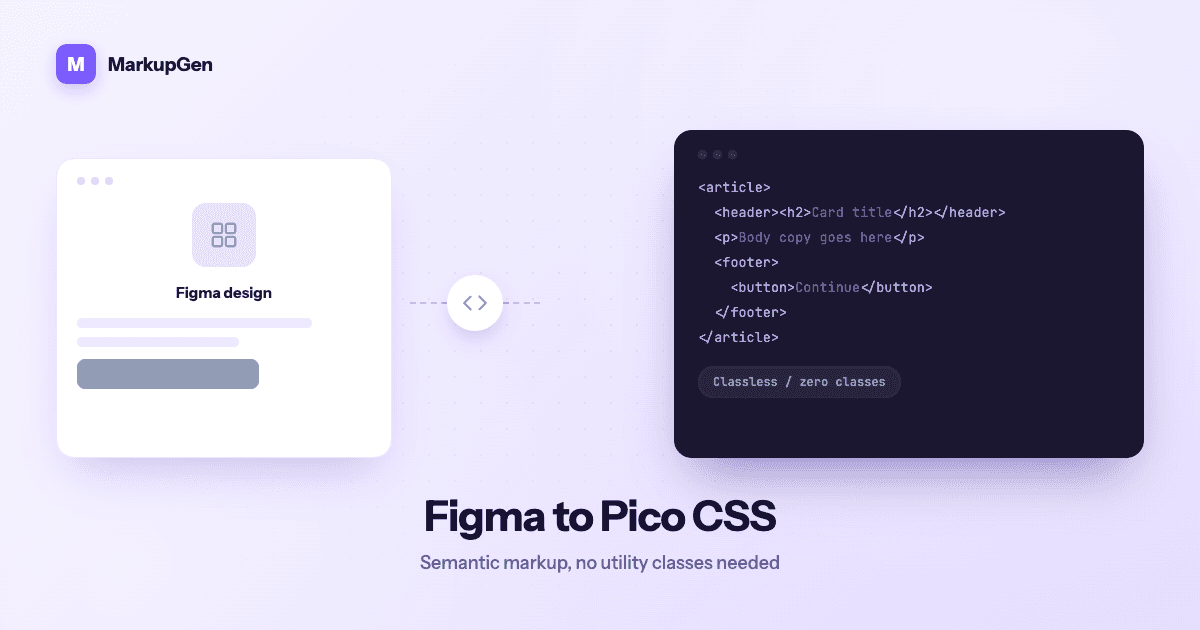
Pico is the smallest, least opinionated framework MarkupGen supports — a classless-first stylesheet that styles semantic HTML tags (<button>, <article>, <nav>, <form>) directly, with no utility classes and no component library to learn. That makes it the fastest framework to review once converted, but it also means the entire conversion quality depends on one thing: whether the output markup is genuinely semantic, not just visually correct.
Why manual Figma-to-Pico conversion is slow
Pico removes the class-picking work other frameworks require, but that shifts the hard part earlier in the process — into the markup itself:
- Choosing the right semantic tag for every element, since Pico has no fallback classes to paper over a wrong choice — a card that becomes a generic
<div>instead of an<article>simply won't pick up Pico's styling. - Structuring forms correctly. Pico styles
<label>,<input>,<fieldset>and<select>automatically, but only if they're nested and paired the way plain HTML expects — a common source of hand-conversion mistakes. - Getting spacing right with almost no override classes available, since Pico's philosophy is sensible defaults, not granular utility control — a design with non-standard spacing needs deliberate, minimal CSS on top rather than a quick utility class.
- Verifying light/dark theme behavior, which Pico handles automatically based on the semantic structure, but only shows up as correct or broken once real markup exists to test against.
Individually simple, but easy to get subtly wrong across a whole page when there's no class name to signal "this is supposed to look like a card."
How MarkupGen generates Pico output from a real design
MarkupGen is built around getting the underlying markup right, which matters more for Pico than for any other output format. The workflow is the same across every target:
- Export the frame from Figma with the MarkupGen plugin, capturing structure, styles and images together.
- AI builds the markup from the design's actual structure, favoring meaningful semantic tags over generically nested
<div>s. - Refine content, fonts and layout in the in-app editor before finalizing anything.
- Export the final code package targeting Pico v2.
Because Pico depends entirely on semantic HTML to style correctly, this is where MarkupGen's default preference for clean, semantic markup pays off directly — a card-like frame becomes an <article>, a form frame becomes a properly nested <form>/<label>/<input> structure, and navigation becomes <nav>, so Pico's built-in styling applies without any classes needed to make it look right.
Where Pico fits among MarkupGen's output formats
Pico is one of six CSS targets in MarkupGen, alongside Vanilla CSS, Tailwind, Bootstrap, Bulma and Materialize, chosen per project rather than fixed for the whole account. It's the right pick for documentation sites, prototypes and content-first pages where a clean, accessible baseline matters more than pixel-precise control over a highly custom design. For how it compares to the other five, see 6 CSS Frameworks for Figma-to-Code.
Reviewing the generated markup before you ship
There's barely any class list to review with Pico, so the checklist shifts to structure and behavior:
- Check that cards, forms and navigation use the correct semantic tags — this is the single biggest factor in whether Pico's styling applies at all.
- Test both light and dark themes, since Pico switches automatically and a structural mistake can look fine in one theme and broken in the other.
- Confirm form fields are properly labeled and nested, since that's what triggers Pico's input styling.
- Use the in-app editor for content or layout tweaks rather than hand-editing exported markup, then re-export.
Every export also gets an automatic AI quality score, so you have a quick signal on readiness before shipping.
Try it on your own design
If you want the leanest possible output with almost no CSS to maintain, it's worth seeing how a semantically-correct export from a real design compares to a hand-converted one. Try MarkupGen free on one of your own frames, or see the Figma to Pico CSS converter page for what you get out of the box.