
Published 2026-08-18 · By MarkupGen Team
Figma to Materialize CSS: A Practical Conversion Guide
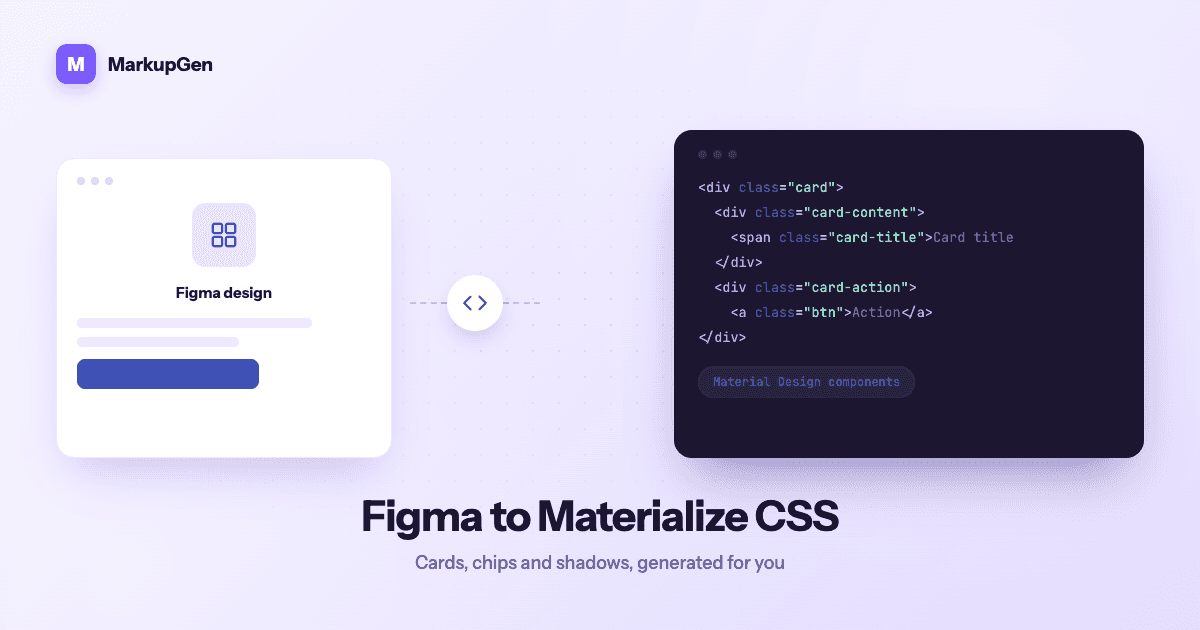
Materialize is a different kind of target than the other frameworks MarkupGen supports: it's not a neutral grid you style on top of, it's an opinionated implementation of Google's Material Design — cards, chips, elevation shadows and a bundled JS layer for interactive components. That opinion is exactly why it's useful when a Figma design already follows Material conventions, and exactly why converting one by hand is slower than it looks.
Why manual Figma-to-Materialize conversion is slow
Getting a design into Materialize's specific vocabulary means more than copying spacing values — it means recognizing which Material pattern a Figma frame is trying to be:
- Matching Figma components to Materialize equivalents. A card-like frame with a shadow needs to become an actual
.cardcomponent with the right elevation class, not a generic<div>with a manually copiedbox-shadow. - Mapping Auto Layout to Materialize's 12-column grid, including its specific
row/col s* m* l*breakpoint classes — a different system than plain flexbox, so it can't be copied from another framework's conversion. - Wiring up JS-dependent components. Unlike a class-only framework, things like modals, dropdowns and the sidenav depend on Materialize's JS initializers — easy to forget when converting markup by hand, and it silently breaks interactivity.
- Reconstructing elevation and color using Materialize's shadow scale and Material color palette instead of pulling raw values straight from Figma's inspector.
Each step is doable in isolation, but a full page means doing all four, repeatedly, without missing the JS initialization that makes half of it actually work.
How MarkupGen generates Materialize output from a real design
MarkupGen is built to skip the manual pattern-matching rather than speed it up. The workflow is consistent across every output format:
- Export the frame from Figma using the MarkupGen plugin, capturing structure, styles and images together.
- AI builds the markup from the design's real structure, not a rough visual approximation.
- Refine content, fonts and layout in the in-app editor before anything is finalized.
- Export the final code package targeting Materialize 1.0.0.
At export time, Auto Layout rows and columns map onto Materialize's grid classes, fills and elevation resolve to the closest matching Material color and shadow classes, and — where the design includes interactive elements — the corresponding Materialize JS is included so components work out of the box instead of rendering as inert markup.
Where Materialize fits among MarkupGen's output formats
Materialize is one of six CSS targets available in MarkupGen, alongside Vanilla CSS, Tailwind, Bootstrap, Bulma and Pico, selectable per project rather than locked in for the whole account. It's the right choice specifically when a Figma design already follows Material Design conventions — dashboards and internal tools are the most common fit, since Material's visual language is already the expected convention there. For how it stacks up against the other five, see 6 CSS Frameworks for Figma-to-Code.
Reviewing the generated markup before you ship
Materialize's opinionated components mean review is less about matching pixel values and more about confirming behavior:
- Click through interactive components (modals, dropdowns, sidenav) to confirm JS initializers came through correctly, not just the static markup.
- Check elevation consistency — the same visual card style should map to the same shadow class everywhere it repeats.
- Confirm the design's color palette resolved to Material's palette sensibly, especially for brand colors that don't sit exactly on a Material swatch.
- Use the in-app editor for layout or content adjustments rather than hand-editing exported markup, then re-export.
Every export also gets an automatic AI quality score as a quick signal on whether it's ready to ship.
Try it on your own design
If you're currently hand-matching Figma frames to Materialize components, it's worth seeing how much of that pattern-matching disappears when it's driven by the design's actual structure. Try MarkupGen free on one of your own frames, or see the Figma to Materialize converter page for what you get out of the box.